Web Development
How to Fix "PHP Not Found" on macOS (XAMPP Guide)

Saranath Ishara Udayanga
Published on December 09, 2025
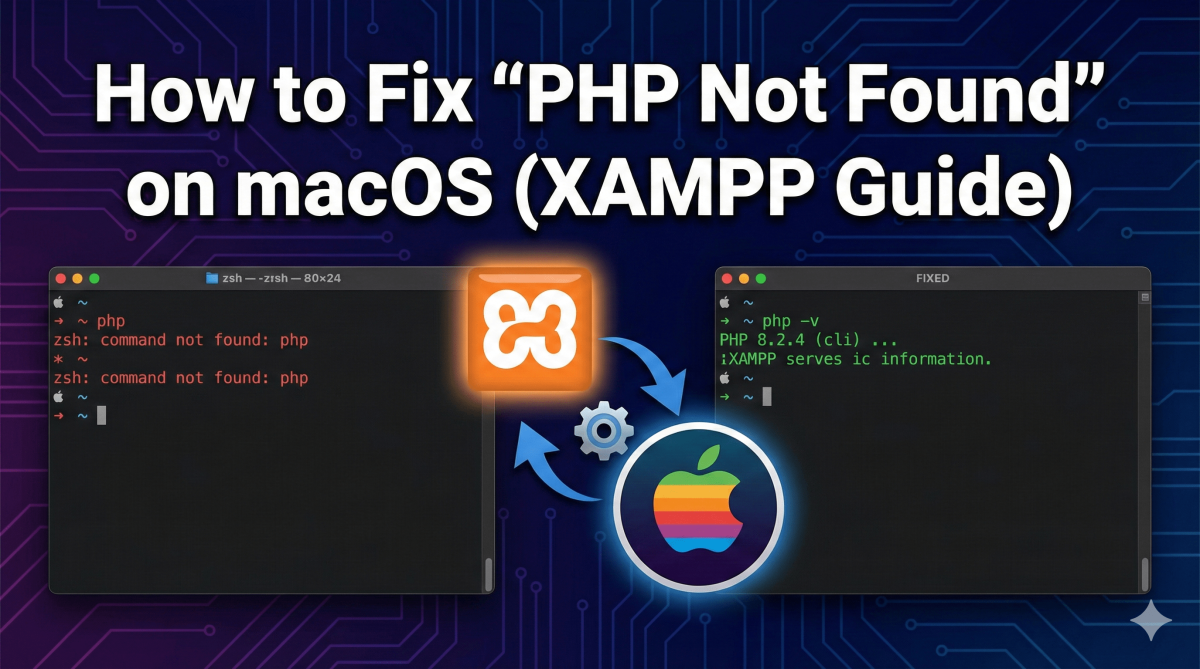
Installed XAMPP on macOS but still seeing the "command not found: php" error?
Even though XAMPP comes with PHP pre-installed, your macOS terminal doesn't know where to look for it by default. Instead of using the bundled XAMPP version, your system often looks for a global installation that doesn't exist. This guide shows you exactly how to add XAMPP's PHP to your macOS system $PATH so you can run PHP commands globally from any terminal window.
php -vand get an error message like this:
zsh: command not found: php
Why is PHP Not Found?
If you see this error, it means your terminal shell (Zsh or Bash) cannot find the PHP executable. By default, macOS only looks in standard system folders. Since XAMPP installs its own isolated PHP binary in a custom directory, your shell ignores it because that location is not yet added to your system's $PATH environment variable.
Let’s add it to your path so your terminal can find it.
Here are three SEO-friendly rewrites for "Step 1." These versions prioritize the specific file path /Applications/XAMPP/xamppfiles/bin, which is the high-value keyword users are searching for.
Option 1: The "Standard Path" Approach (Best for Quick Answers)
Step 1: Locate the XAMPP PHP Binary Path
XAMPP isolates its tools from your main system files. By default, the PHP executable is stored deep within the XAMPP application folder. For almost all macOS installations, the path you need to add is:
/Applications/XAMPP/xamppfiles/bin
To verify that the PHP executable exists in this location, run:
ls /Applications/XAMPP/xamppfiles/bin/php
If this command lists the PHP file, you’re on the right track.